Dockerize FileZilla FTP
A guide to running FileZilla as a Docker container with browser-based access, covering Docker Compose configuration, user/group permissions, and RAID array mounting.
Dockerize FileZilla 2024
Overview
Running an FTP client in Docker provides convenient browser-based access to file systems. This guide covers deploying FileZilla in a containerized environment, particularly useful for headless servers managing RAID arrays or shared storage.
Docker Image Selection
Two popular options exist:
The jlesage implementation was chosen for this setup due to comprehensive documentation.
Docker Compose Configuration
services:
  filezilla:
    image: jlesage/filezilla
    container_name: filezilla
    ports:
      - "5800:5800"  # Web interface
    volumes:
      - "/mnt/raid5:/storage:rw"  # Mounting RAID array
      - "config:/config:rw"  # Configuration
    environment:
      - USER_ID=1000
      - GROUP_ID=1001
      - TZ=America/Phoenix
      - UMASK=0002
      - DARK_MODE=1
    restart: unless-stopped

volumes:
config:Key Configuration Points
Storage mounting: The RAID array mounts to /storage for direct file downloads to primary storage location.
Named volumes: Configuration uses Docker-managed volumes for simplified management.
User/Group IDs: USER_ID corresponds to the host user account; GROUP_ID matches the group with storage permissions (1001 for 'smbusers').
UMASK setting: A UMASK of 0002 allows newly created files to permit read-write access for the group by default.
Dark mode: Enabled via environment variable.
Identifying System IDs
Retrieve user and group identifiers with:
id <username>Output displays UID and GID values needed for environment configuration. Add users to appropriate groups before container deployment if necessary.

File System Permissions
Ensure proper directory permissions:
- Root user has read/write access
- Target group members have read/write access
- Container operates with specified USER_ID and GROUP_ID
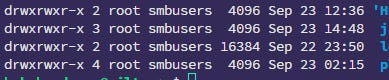
This permissions structure enables the containerized application to read and write files within the mounted storage volume appropriately.