Prometheus as a Service
This guide will provide instructions on how to install Prometheus as a service on Windows
Windows - Prometheus as a Service
Introduction
This guide will provide instructions on how to install Prometheus as a service on Windows 11 using NSSM.
Download Prometheus
Download Latest
The first step is to navigate to the Prometheus Download page and get the latest version. At the time of this wiki that is version prometheus-2.55.0.windows-amd64 and this will be used in the wiki as an example.
Extract
Once downloaded, extract the zip file. Then create a folder at the path C:\Prometheus or a location of your choosing, and move contents of the extracted file to that directory. Something to keep in mind is the prometheus.yml file is located in this directory and will need to be modified in order to add scrape targets in the future.
Non-Sucking Service Manager (NSSM)
Download NSSM
To install Prometheus as a service NSSM will be used. Head over to the Builds Page for NSSM and download the latest build.

Extract
Extract the contents. Create a folder at the path C:\nssm and move the extracted contents there. You only need the nssm.exe that is located in the win64 folder.
Create Prometheus Service
Move to NSSM Directory
Now open a Terminal with Admin privileges by right clicking on the Windows menu and selecting "Terminal (Admin)". Then navigate to the NSSM folder
cd C:\nssmCreate the Service
Then create the Prometheus service with NSSM
.\nssm.exe install PrometheusIn the NSSM configuration window:
- For the Path field, select C:\Prometheus\prometheus.exe.
- In the Startup directory, enter C:\Prometheus.
- In the Arguments field, add
--config.file="C:\Prometheus\prometheus.yml
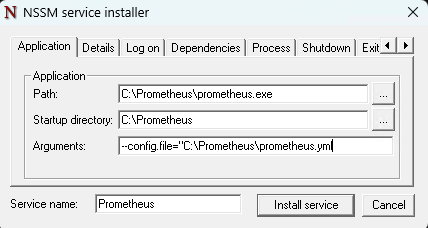
Then click Install service.
Start Prometheus
Start Prometheus Service
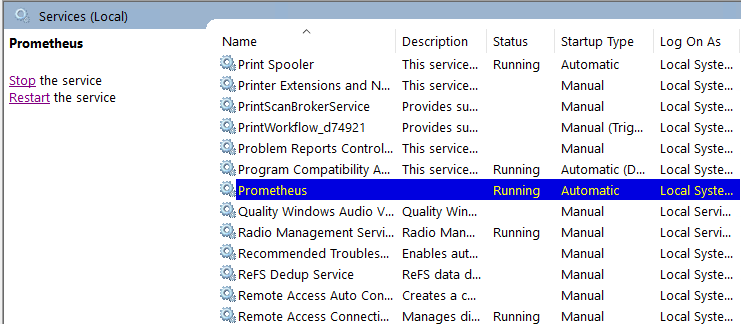
Open up the Services console by searching for services.msc in the Start menu. Find the "Prometheus" service, right-click, and then select Start. Make sure the startup type is "Automatic" if you want Prometheus to start on boot.
Web Frontend
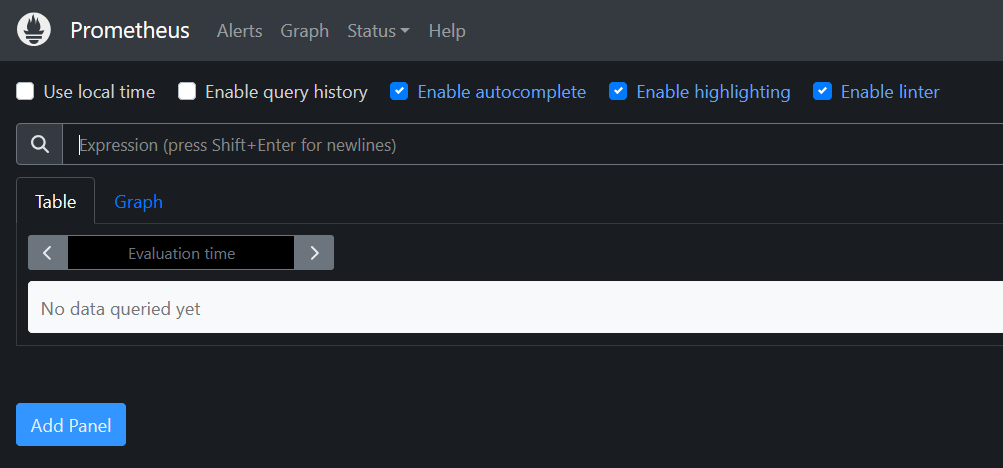
Now that the Prometheus service has started, the web frontend should be accessible on http://localhost:9090. You should see the Prometheus web interface if it's running correctly.
With this setup, Prometheus should now run as a Windows service, automatically starting whenever your machine boots up.