Tutorial
Prepare MicroSD Card in Ubuntu
A guide to preparing your MicroSD card for installing an OS onto the CM3588.
This post contains paid links (affiliate) — how that works.
Overview
This guide will walk you through the process of preparing a MicroSD card for installing an operating system onto the CM3588. Before proceeding, ensure you have already downloaded the OS image you wish to install. The CM3588 supports several operating systems including FriendlyElec Debian, FriendlyElec Ubuntu, and Armbian.
Prepare the MicroSD Card
If your PC does not have an SD Card slot, you can use a USB MicroSD card reader.
Once the card is inserted into your system, follow the instructions below to wipe and format the MicroSD card.
It is extremely important to make sure you are selecting the correct device as all data will be wiped.
Identify the device on your system:
lsblk
If any of the partitions are mounted, unmount them:
sudo umount /dev/sdX*Wipe the MicroSD card:
sudo wipefs -a /dev/sdX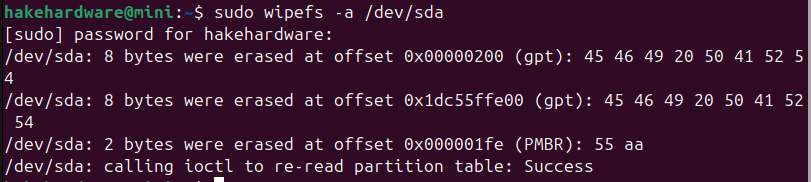
Flash the Image
If you have downloaded an image file that ends with .img.gz:
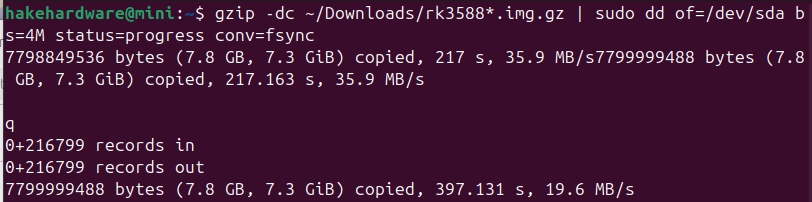
gzip -dc ~/Downloads/rk3588*.img.gz | sudo dd of=/dev/sdX bs=4M status=progress conv=fsyncIf you have downloaded an image file that ends with .img.xz (such as Armbian):
xz -dc ~/Downloads/Armbian*.img.xz | sudo dd of=/dev/sdX bs=4M status=progress conv=fsyncMake sure you replace the path to the image with the actual path and replace /dev/sdX with the actual device name.
After it looks like it is complete, there may be a few minute delay before the prompt returns. This is normal as it is flushing the write cache.
Sync the Filesystem
syncEject the drive:
sudo eject /dev/sdXThe MicroSD card is now ready to be inserted into the CM3588 and booted up.