Tutorial
Prepare MicroSD Card in Windows
A guide to preparing your MicroSD card for installing an OS onto the CM3588 in Windows.
This post contains paid links (affiliate) — how that works.
Overview
This guide will walk you through the process of preparing a MicroSD card for installing an operating system onto the CM3588.
Clean and Partition the MicroSD Card
If your PC does not have an SD Card slot, you can use a USB MicroSD card reader.
Once the card is inserted into your system, follow the instructions below to wipe and format the MicroSD card.
It is extremely important to make sure you are selecting the correct device as all data will be wiped.
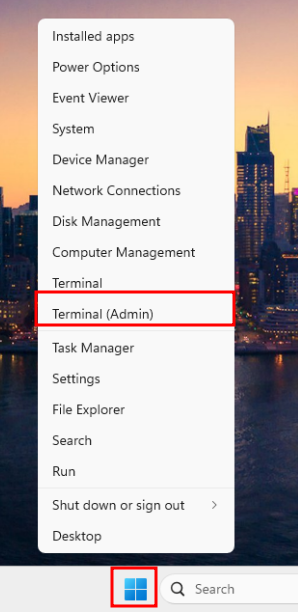
Right-click the Start button and select Terminal (Admin):
Launch diskpart:
diskpartThen list the available disks:
list disk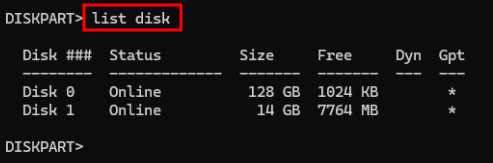
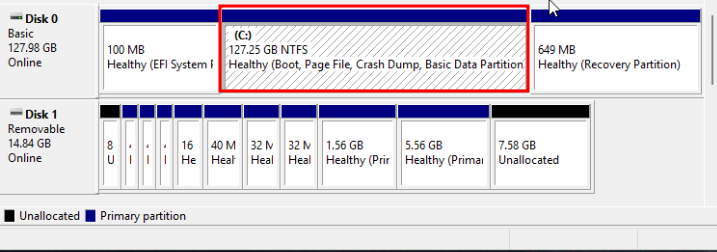
If you are unsure which disk is the MicroSD, open Disk Management:
Back in diskpart, select the MicroSD card:
select disk 1Clean the disk:
clean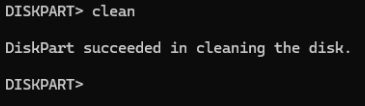
Create a new partition:
create partition primary
Format the MicroSD Card
Download the SD Card Formatter from SD Association.
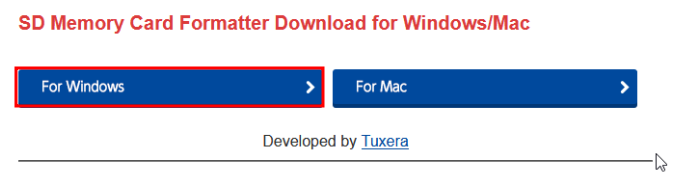
Click For Windows then scroll down and click Accept.

Extract the files:

Open the SDCardFormatterv5_WinEN folder:
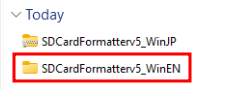
Double click the file inside to launch installation. Follow the wizard, then click Format:
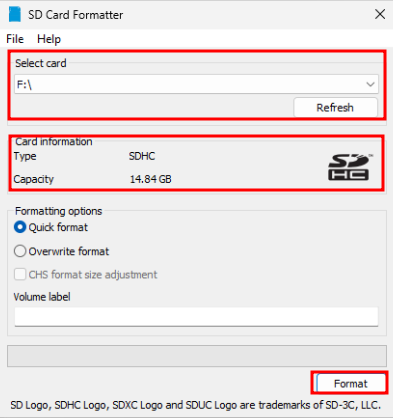
Flash the Image
Download the USBImager tool. Click the GDI link:

Select the image to flash:
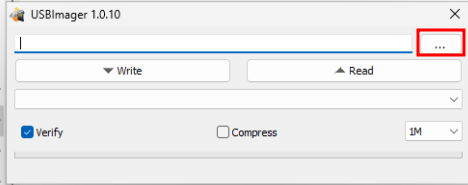
Select the MicroSD card:
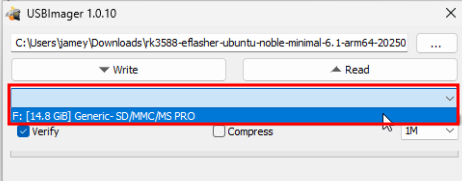
Click Write:
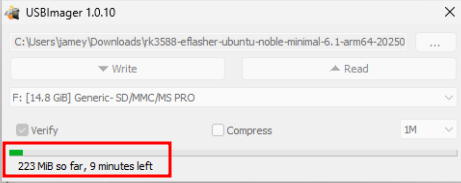
Once complete:
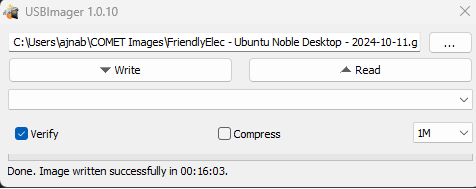
The MicroSD card is now ready to be inserted into the CM3588 and booted up.